TITLEBRICK - DELETE ACCOUNT POLICY
Account Deletion Overview
TitleBrick allows registered users to request deletion of their account from the TitleBrick mobile app or from the TitleBrick web account settings page.
Once an account deletion request is submitted, the account deletion process is treated as in progress. The user may not be allowed to continue using the account while the deletion request is pending.
Mobile App Account Deletion Steps
1. Open the TitleBrick mobile app.
2. Login to your TitleBrick account.
3. Go to Profile or Account Settings.
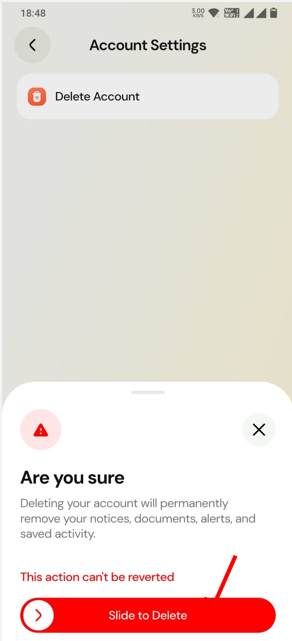
4. Select Delete Account.
5. Review the account deletion information shown on screen.
6. Confirm and submit the delete account request.
Web Account Deletion Steps
1. Open the TitleBrick website.
2. Login to your TitleBrick account.
3. Go to Account Settings.
4. Find the Delete Account section.
5. Submit the delete account request.
Deletion Timeline
After a valid deletion request is submitted, TitleBrick will process the account deletion within 24 hours.
TitleBrick will delete or disable account-related data associated with the user account, subject to legal, compliance, fraud-prevention, dispute-resolution, audit, security, record-keeping, or other lawful retention requirements.
Confirmation Email
After successful deletion, TitleBrick will send an email confirmation to the email address available in the user account, where such email address exists.
Pending Deletion Login Restriction
If a user attempts to login while an account deletion request is pending, TitleBrick may show a message that the account deletion is in progress.
Important Note
Certain information may continue to be retained where reasonably required for legal compliance, fraud prevention, dispute resolution, audit purposes, security enforcement, contractual enforcement, business continuity, or protection of the rights, interests, safety, or security of TitleBrick, its users, or third parties.
Support
If the account deletion request was submitted by mistake, the user should contact TitleBrick support immediately before the deletion process is completed.
How to delete your TitleBrick account on web
Follow these steps from your TitleBrick web account settings to submit an account deletion request.
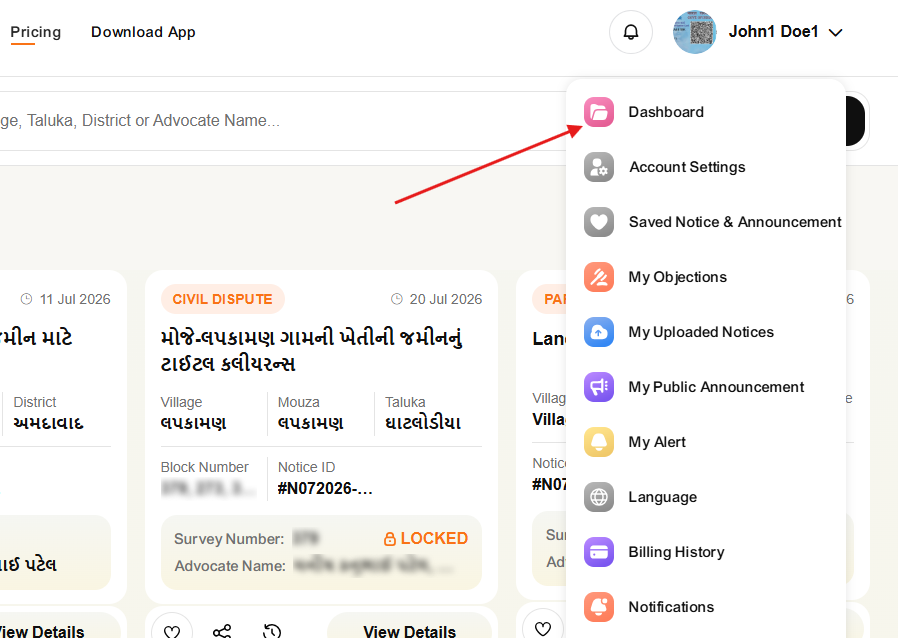
Open the profile menu
Click the profile header icon and choose Dashboard.
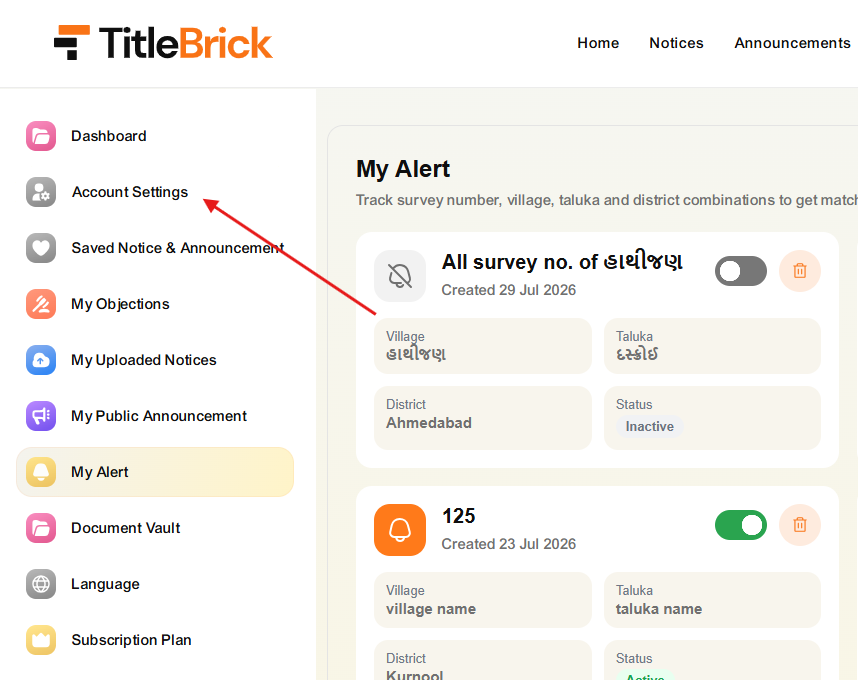
Go to Account Settings
Click Account Settings from the user dashboard sidebar.
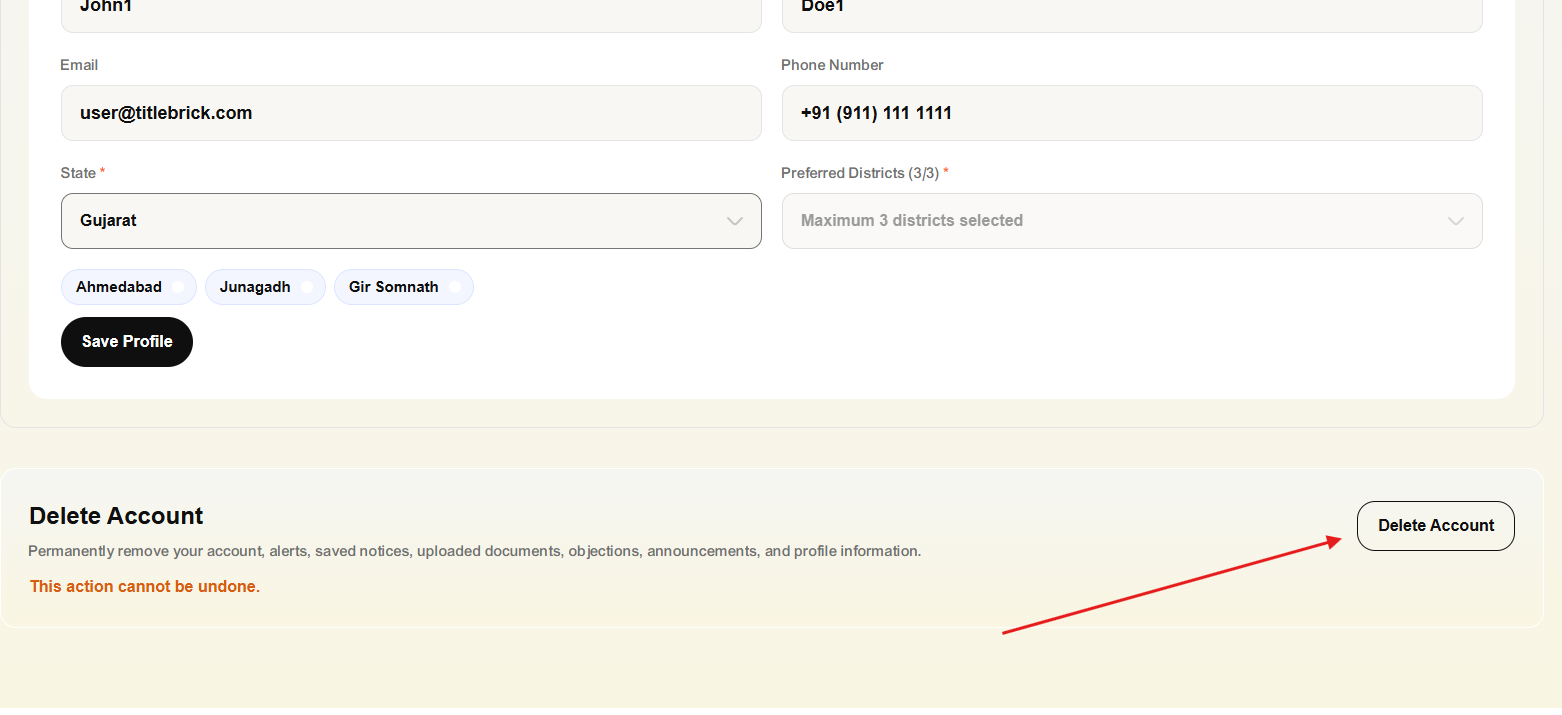
Click Delete Account
Scroll to the Delete Account section and click the Delete Account button.
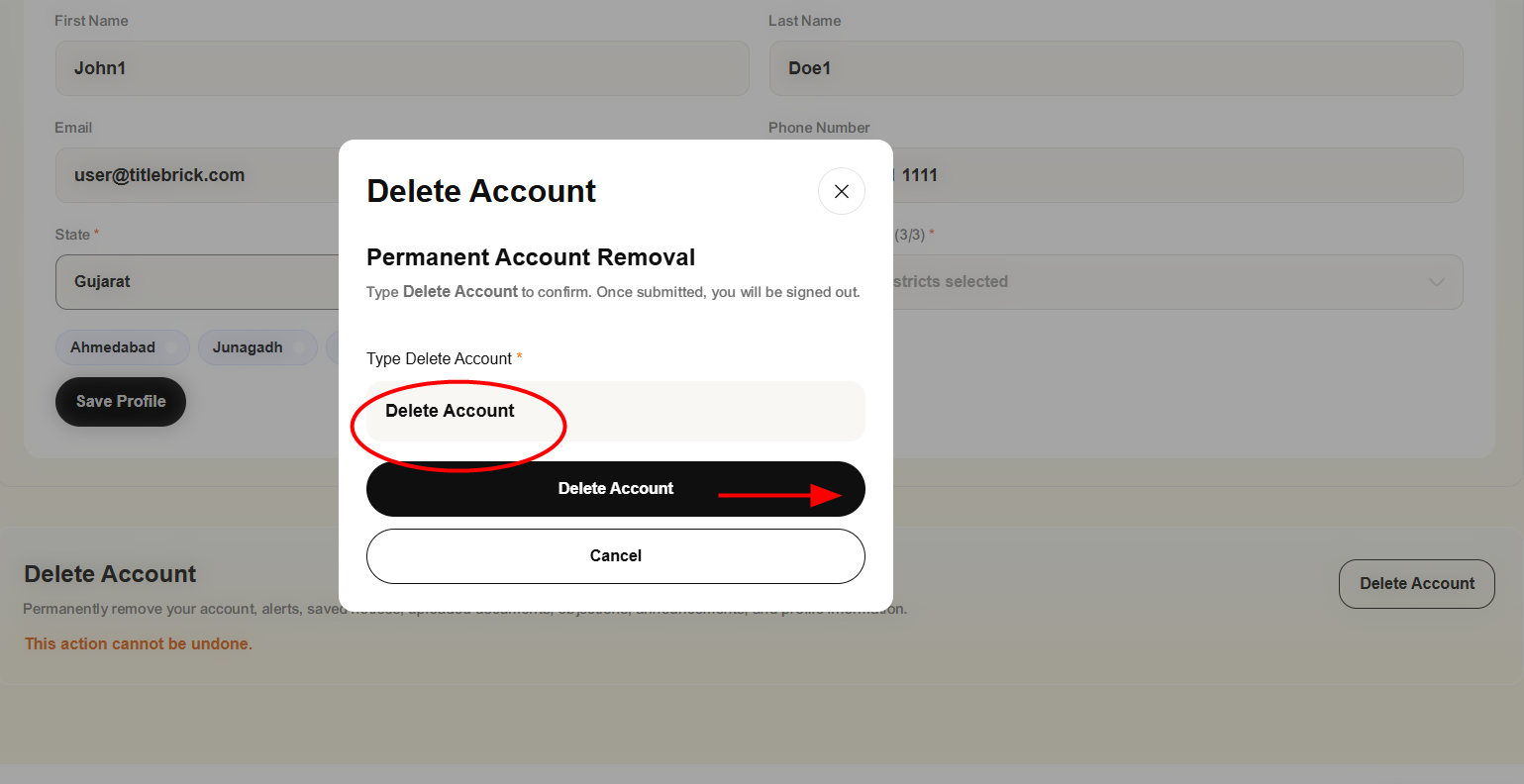
Confirm the deletion request
Type Delete Account in the confirmation popup and click Delete Account.
How to delete your TitleBrick account in the mobile app
Follow these steps in the TitleBrick mobile app to submit an account deletion request.
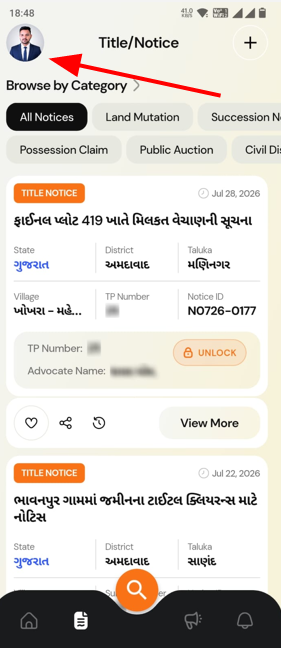
Open your profile
Tap the user profile icon at the top of the mobile app.
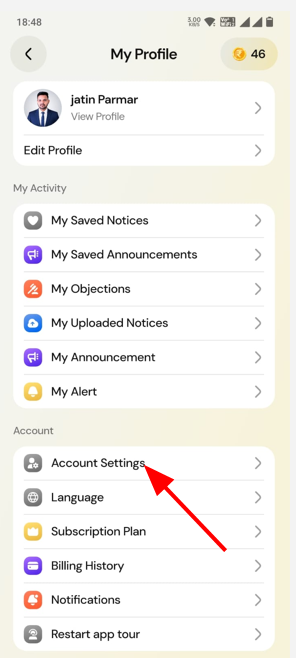
Open Account Settings
Tap Account Settings from the My Profile screen.
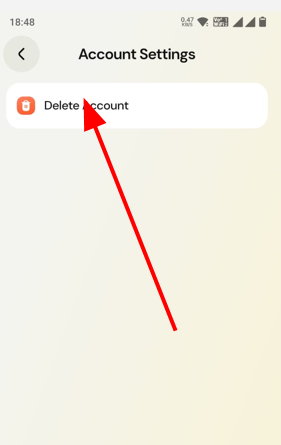
Tap Delete Account
Tap Delete Account on the Account Settings screen.
Confirm account deletion
Use the confirmation control to submit the delete account request.